Social Icons

Showing posts with label windows 10. Show all posts

Thursday, May 14, 2015

Easy-to-use TunnelBear Chrome Extension Brings VPN Services to Everyone


tunnel-bear-vpn-chrome-
TunnelBear is one of the most loved VPN (Virtual Proxy Network) services because of its simplicity and clean interface. Now, the company has decided to make this service even handier by launching an extension for your Google Chrome browser. So, now you can maintain your privacy more easily.
Keeping aside the advantages of the anonymity, VPN services are of interest to those who are in the countries where some services like Spotify, Netflix aren’t available or some of the services are blocked. After installing the extension, the free users will get 750MB, but TechCrunch writes that TunnelBear will soon offer 1GB.
Currently, this VPN extension is available only for Google Chrome. TunnelBear plans to release the extension for other browsers including Safari, Firefox and more.
In an interview with TechCrunch, TunnelBear co-founder Ryan Dochuk said: “Our goal is to make [using a VPN] as easy and accessible as possible. The extension is so fast and so easy that you should be using it in your everyday internet activity.”

tunnel-bear-vpn-chrome

This TunnelBear extension for Chrome isn’t a full-fledged VPN. It doesn’t handle data only from your browser instead of your entire system. So, for browsing purposes and watching Netflix in the unsupported countries, it is a good option.
TunnelBear, based in Toronto, was founded in 2011 and provides its service to 5 million people all over the world.
Here are some of the services provided by the TunnelBear extension for Chrome:
  • Stop web sites and advertisers from tracking you.
  • While using public WiFi, secure your browser’s identity.
  • Free data every month.
  • Take the advantage of a fast VPN private network with connections to 14 countries.
I’ve installed and used the TunnelBear extension for Chrome and it does what it needs to do. It should be noted that it uses the AES 128-bit encryption instead of the better AES-256 encryption used by the usual TunnelBear app.

Try it out from the link given below:
TunnelBear for Chrome

Do you use VPN services? Tell us in the comments below!

Disliking Windows 10? Run Windows 1.01 in Your Browser Right Now

What's This?
 
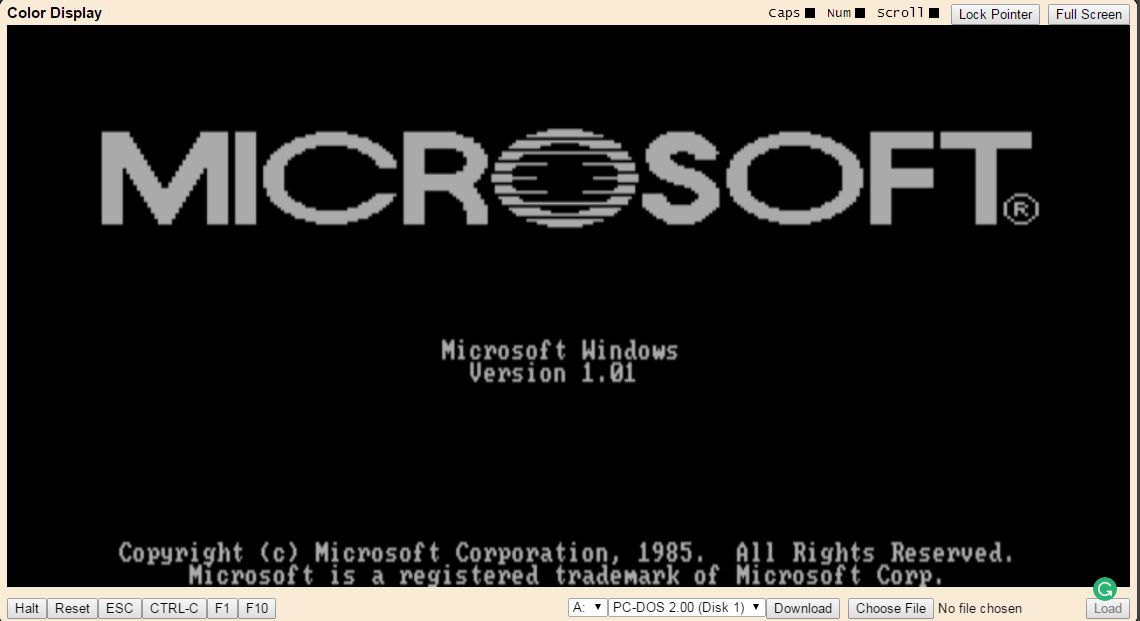
microsoft-1.01-online-browser

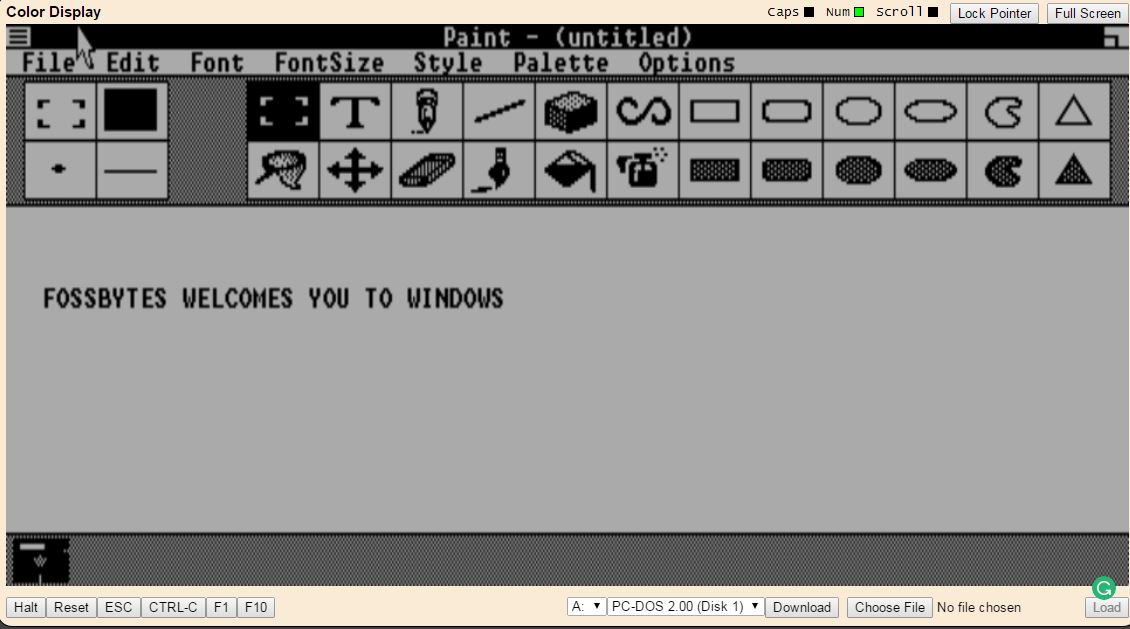
If the upcoming Windows 10 launch isn’t something that is making you excited, it’s time to take a walk down the memory lane and look at Window’ past. It’s been more than 30 years when Windows 1.01 OS disappeared from the scene. But, now you can use the original Notepad and draw amazing artworks in the very first version of Paint.
I know it’s possible to re-install the operating system on your system but why take those pains when you can enjoy it virtually. Few months ago, a similar online version of Windows 93 took the internet by storm.
In a recent post by gHacks, they have shared some sites where you can relive the ancient Windows versions for free. Windows 1.01 runs with the help of a PCJS emulator and gives you a taste of this breakthrough OS by Microsoft.

microsoft-1.01-online-browser-

This is an IBM PC XT Model 5160 JavaScript based emulator. PCJS basically emulates the software entirely with Intel 8088 CPU clocked at 4.77MHz and 265KB of RAM.
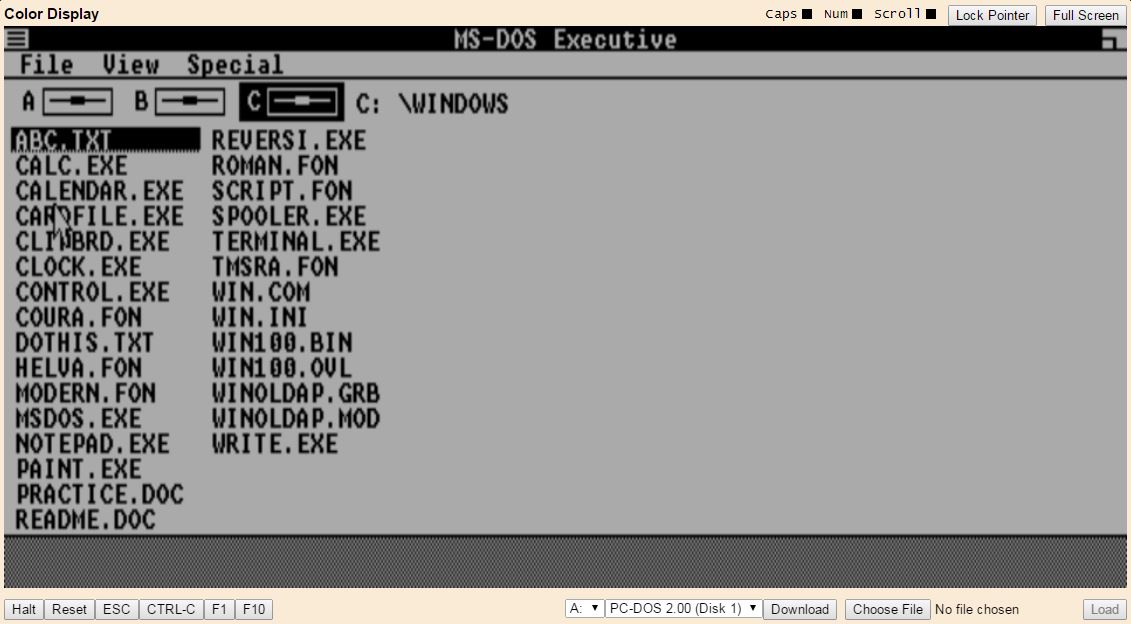
Windows 1.01 was launched in 1985 and allowed the users to multitask a taskbar similar to the latest versions of Windows. Those who have used older systems, would find this Windows 1.01 online version nostalgic.

microsoft-1.01-online-browser--

Everything performed by this Windows 1.01 online version is possible due to the power and flexibility of JavaScript. Click this link to explore Windows 1.01 on your PC.

For experiencing the Windows of past, check out the post on gHacks.

Did you like this ancient version of Windows? Tell us in comments and share it with your friends!

Friday, April 3, 2015

DVDFab Giveaway!

Ladies and Gentlemen, we are proudly to present you a gift from our team.

We will give a FREE* software giveaway, licensed and fully functional.


A. DVD to DVD
1. 8 DVD to DVD copy modes available: Full Disc, Main Movie, Split, Customize, Customize Split, Clone, Merge and Write Data.
2. Full Disc: All movies, menus and trailers, is copied to a DVD with just one click.
3. Main Movie: Just copy the movie, with specific audio/subpicture.
4. Split: Copy a DVD-9 onto two DVD-5 discs with 100% quality, and preserve original menus on both discs. Ideal for episodic/season DVD movies, TV series, etc.
5. Customize: Personalize your DVDs! Want to make a DVD with only your favorite titles? How about cutting out those annoying commercials? Or selecting specific audio/subpicture? No problem! You can select just your favorite titles, specify the title playback order, with or without original menus, to create a DVD with only the stuff you want!
6. Customize Split: Copy a DVD-9 onto two DVD-5 discs using "Customize" way. Ideal for episode/season DVD.
7. Clone: Make perfect 1:1 bit-to-bit copy of DVDs: * Make perfect dual layer DVD copy by using the original layer break position.
* Copy data DVD disc, like PS2 DVD.
8. Merge: Combine several titles of several sources into one DVD:
* Combine two DVD-9 like "The Lord of the Rings" into one DVD-9.
* Merge season DVDs to fewer discs.
* Create your own special features collection disc.
9. Write Data: Burn existing DVD folder or ISO image file to DVD writer, or convert DVD folder to ISO image file.
10. Burn to any blank DVD Disc (DVD+R/RW, DVD-R/RW, DVD+R DL, DVD-R DL).
11. Constantly updated to support latest DVD burners and blank DVD discs.
A. Blu-ray to Blu-ray
1. 4 Blu-ray to Blu-ray copy modes available: Full Disc, Main Movie, Clone and Write Data.
2. Full Disc: All movies, menus and trailers, is copied to a Blu-ray with just one click.
3. Main Movie: Just copy the movie, with specific audio/subpicture.
4. Clone: Make perfect 1:1 bit-to-bit copy of Blu-ray.
5. Write Data: Burn existing Blu-ray folder or ISO image file to Blu-ray writer, or convert Blu-ray folder to ISO image file.
6. Compress BD-50 to BD-25/BD-9/BD-5. (coming soon)
7. Very fast copying speed.
8. Burn to any blank Blu-ray Disc (BD-R 25, BD-RE 25, BD-R 50, BD-RE 50).
9. Constantly updated to support latest Blu-ray burners and blank Blu-ray discs.


Acronyms / Also Known As:
DVDFab, BluFab, DVDFab DVD Copy, DVDFab Blu-ray Copy, DVDFab Video Converter, DVDFab DVD Ripper, DVDFab Blu-ray Ripper, DVDFab DVD to Mobile, DVDFab Blu-ray to Mobile, DVDFab DVD Ripper, DVDFab Blu-ray 3D Ripper, DVDFab Blu-ray to DVD Converter


 * - You must complete a simple offer to download the file. In this way we prevent leechers and spam/bots.
Offers are easy to complete and it will cost you about 2 minutes!

Download it here.

Free Antivirus for Windows

Tencent PC Manager is a new free antivirus software for Windows that claims to have the largest security cloud base, the best anti-virus engine and seven international authoritative certification. It offers strong protection from computer viruses, spyware, malware, rootkits, and other emerging threats. The application detects and fixes safety as well as performance issues encountered on your Windows PC. Let us review it and have a look at some of its features.

Tencent PC Manager

Tencent PC Manager
Tencent, in case you did not know, is China’s largest and most used Internet service portal and the fifth-largest Internet company in the world after Google, Amazon, Alibaba, and Ebay.
Tencent PC Manager makes use of the following to detect malware on your Windows computer:
  1. Tencent cloud
  2. Tencent Antivirus engine
  3. Avira antivirus engine
  4. Tencent system repair engine
A nifty feature of Tencent PC Manager is that it constantly keeps a hawk eye on your computer and as soon as you download a file off the Internet, it thoroughly examines its contents, just to notify you if any suspicious component is detected.
The application promises a faster scan using fewer system resources, and real-time protection by instantly identifying and blocking new threats as soon as they appear. In addition to above, PC Manager includes anti-phishing, link scanner, secure browsing, webcam protection, USB protection, and hacking detection protection modules.
Apart from Quick Scanning, the Custom analysis lets you check the drives and folders you are interested in, as well as the PC areas that are usually most vulnerable: system memory, system and Internet Explorer settings, startup apps, frequently used programs or hijacked system software.
The settings menu houses the following tabs,
  • General Settings – Lets you enable self-defense to avoid Trojan attacks.
Tencent PC mnager Settings
  • Antivirus settings – Allows you to add programs to the White-list that can be ignored from scanning when the PC Manager starts.
Tencent Pc Manager Settings 2
  • Real-Time Protection – Allows you to take action on threat detection.
Tencent PC Manager Settings 3
  • Download Protection – Flashes security prompt on dangerous files.
Tencent PC Manager Settings 4
The only disappointment you come across while using the application, there is no scheduled scan so you need to do it manually. Apart from this, Tencent PC Manager integrates well in the context menu of Windows Explorer and lets you effortlessly scan whatever file or folder you select.

Visit its home page if you want to read more about it and download it.

Android users: http://cpa.ly/5V2H

Tencent is China’s largest and most used Internet service portal and the fifth-largest Internet company in the world after Google, Amazon, Alibaba, and Ebay. Microsoft also recently announced a strategic partnership with Tencent. If your Chrome gives you a warning, it could be a false positive.

Wednesday, March 11, 2015

Windows 10 at the core of future Internet of Things?

While Microsoft pointed out many uses of Windows 10 at its Jan 21 2015 event, it missed out on Internet of Things. Or, at least, did not bring up the topic. It talked about desktop version of Windows 10, mobile version of Windows 10 and Windows 10 for Surface Hub and more but did not drop a hint that it is bringing Windows 10 into the realm of Internet of Things. The article tries to decode how the future of Internet of Things can change with Windows 10 at its core.

windows-devices-yellow

Windows 10 for Internet of Things

In the recent developments, the most important are availability of Windows 10 for a range of devices and the upgraded version of Raspberry Pi. There have been more developments but they are out of scope of this article. We focus on Windows 10 for Internet of Things in this post.

Though they did not mention it specially, the way Microsoft presented Windows 10 at the Jan 21 2015 event, they did drop many hints about having an edition of Microsoft Windows 10 for Internet of Things. One such hint was Surface Hub, which is nothing but a screen in effect but runs on Windows 10. The Holographic glasses will also run on Windows 10. Microsoft has come up with a micro version of .Net framework. All these are ample to suggest that there will be a version of Windows 10 for Internet of Things. And the doubts are cleared with new version of Raspberry supporting Windows 10.

More Coding Options As Windows Does All Essential Work
If Microsoft is offering a custom version of Windows 10, that I believe is named “Windows 10 Athens“, for micro systems and for Single computer boards such as Raspberry PI 2, there is a great scope of people using Windows 10 to build all the small things that will be connected to the Internet. Right now, people are using Linux for IoT (Internet of Things) and most of them code in Python and C++. Both these languages, once into executable form, will not be a problem for running on Windows 10. Every programmer knows that coding in C++ and Python is better and provides total control over hardware. So far, they had to come up with codes that would make the most of the hardware and deal with the compatibility of the operating system running these custom programs. They had to code for proper usage of hardware so that no part of the hardware was clogged and left unavailable for programs.
Notwithstanding the fact that programmers have better control over the hardware required for Internet of Things, the Windows 10 operating system will let them program more easily using more languages. Thus, more people will enter into creating and maintaining Internet of Things. Windows 10 is not about graphics user interface. Even Linux provides one but is bulky compared to Win10. The better part is that it is trimmed down just to suit the single computer boards such as Raspberry Pi 2 and does not waste resources unlike other operating systems. Programmers can now code without having to worry about handling memory properly, for instance. Windows 10 itself handles RAM in way that no part of memory is blocked and is easily available to programs on the IoT things. Likewise, the operating system runs easily on ARM-based processors and handles micro x86 chips easily.

Security of Internet of Things: Micro .NET and Win10 Internal Security
With Microsoft developing a micro version of .NET, security will increase with Windows 10 for Internet of Things. As of now, people do not even care to change their default passwords on things connected to the Internet. The ovens, lighting systems etc come with default passwords such as “passwords”, “1234” or “0000” and end users do not even know that they have to change the password to make themselves safer. All these while, any hacker can take control of these connected devices and use them to initiate a DDoS attack on any website. Since the things of Internet of Things are distributed throughout the globe, it is hard to charge anyone with hacking.

With Windows 10 coming into the picture, along with, the enhanced Micro .NET (that’s what I will call it until it has a formal name announced) things will change as the operating system has focused on security that will be much better than other operating systems in the market as of now. It will be harder for hackers to break into things of Internet of Things.

While Microsoft has been building its own Internet of Things and they stress on security, the other programmers creating their own Internet of Things can now use a lightweight graphical interface to prompt and let the users change the passwords easily.

Windows 10 For IoT: Summary
The future of IoT looks more promising and focuses on the security of connected devices. Windows 10 promises better Internet of Things with one of its edition focusing solely on the functioning and security of the devices used in all households.

To sum up in one line, Windows 10 is all set up to build up a major portion of Internet of Things with its new Windows 10 Operating System and the micro .NET framework as people will prefer the combination for simple UI and enhanced security features.

Tuesday, March 10, 2015

Find out Computer RAM, Graphics Card / Video memory of your Windows PC

Many people ask –
How do I find out how much RAM is installed on my computer? 
How much memory does my Graphics card have?  
How much Video memory does my Windows PC have? 
In this post we will see how to find out the answers to these questions.

How much Computer RAM does my PC have?

In Windows 8, you will have to open the Win+X menu > Control Panel > System. Under the System section, you will see Installed memory (RAM). This is the Computer RAM which has been installed on your Windows PC.

computer-ram-memory

However Windows may show less RAM than what is installed.
For instance on some systems, Windows 32-bit, may report that there is only 3.5 GB of usable system memory when 4 GB of memory has been installed. Or, a Windows 64-bit computer may show only 7.1 GB of usable system memory when 8 GB of memory may be installed. This is because usable memory is a calculated amount of the total physical memory minus “hardware reserved” memory.

How much Graphics Card / Video memory does my computer have

video-graphics-card-memory
 If your system has a dedicated graphic card installed, and you want to find out how much Graphics Card memory your computer has, open Control Panel > Display > Screen Resolution. Click on Advanced Setting. Under the Adapter tab, you will find the Total Available Graphics Memory as well as the Dedicated Video memory.

Run dxdiag

You can also type dxdiag in Run box and press Enter to open the DirectX Diagnostic Tool box.

computer-ram-1

This tool however may not report the exact memory of your video card and may also be reporting how much total shared memory is there between your video card and your system memory.

CPU-Z

CPU-Z-windows

If you are looking for a freeware to do the job for you, you can check out CPU-Z. This tool gathers information about the main devices of your system. It will not only give you information about your RAM, Graphics card and video memory but also other important system information.

Password protect polders in Windows without using 3rd-party software

Occasionally, Windows users might feel the need to place password protection on their folders. Chances are, these folders contain sensitive information that no one else should view, no matter the reason. T
here are several third-party free file encryption software available that allow computer users to attach a password to their sensitive folders and encrypt them.
However, today we are going to look at how to password protect folders without software.
This trick is nothing new – and works even on Windows 10 / 8 / 7.

Password protect folders without software

First thing is first: You will need to create a folder that will contain your password-protected subfolder. Once that new folder is created, navigate inside the folder and create a text document. Now, there is no need to give this text document a unique name because you will be deleting it after everything is done.
Once this new text document is created, just open it and copy paste the following inside:
cls

@ECHO OFF

title Folder Locker

if EXIST "Control Panel.{21EC2020-3AEA-1069-A2DD-08002B30309D}" goto UNLOCK

if NOT EXIST Locker goto MDLOCKER

:CONFIRM

echo Are you sure u want to Lock the folder(Y/N)

set/p "cho=>"

if %cho%==Y goto LOCK

if %cho%==y goto LOCK

if %cho%==n goto END

if %cho%==N goto END

echo Invalid choice.

goto CONFIRM

:LOCK

ren Locker "Control Panel.{21EC2020-3AEA-1069-A2DD-08002B30309D}"

attrib +h +s "Control Panel.{21EC2020-3AEA-1069-A2DD-08002B30309D}"

echo Folder locked

goto End

:UNLOCK

echo Enter password to Unlock folder

set/p "pass=>"

if NOT %pass%==Your-Password-Here goto FAIL

attrib -h -s "Control Panel.{21EC2020-3AEA-1069-A2DD-08002B30309D}"

ren "Control Panel.{21EC2020-3AEA-1069-A2DD-08002B30309D}" Locker

echo Folder Unlocked successfully

goto End

:FAIL

echo Invalid password

goto end

:MDLOCKER

md Locker

echo Locker created successfully

goto End

:End
 
We are almost done here, so don’t go running off just yet.
You will now need to add your required password to gain access to your “sensitive files” whenever you need them. To do this, locate “Your-Password-Here” in the script you just copied and pasted in the text document. Delete “Your-Password-Here” and type in your desired password. Once done, it is time to save the document as “FolderLocker.bat”. This is only possible if “All Files” is selected.
Not sure what that is? Don’t worry, we’ll break it down for you. Within the document, click on File, and then Save as. After that, you should see something called Save as type, click the drop down menu and choose All files. Once done, save the document as FolderLocker.bat and close it.
You should now see a file with the name, “FolderLocker”. Double click on it and it should automatically create a folder called Private, this is where you will be storing all your sensitive data. Open it and place your files inside, when you’re done, return to the file called FolderLocker and double-click it. You should see the following:

Password protect folders without software

Type “Y” and press Enter. This will lock the Private folder, which will force it to disappear. If you would like to see it again, double-click FolderLocker again, but this time you’ll need to type the password you have chosen. Next, press Enter.
That’s it; you’ve done well, so pat yourself on the back. You can now safely store your sensitive files in a password-protected folder without using a third party software.

We suggest that you first try using this trick on empty folders, till you get a hang of it. Don’t go on and password-protect your important data right-away. Once you get the hang of it, you can go on and use it on your important folders. Also if you were to forget your password, simply right-click the FolderLocker.bat file and select Edit. You will be able to see the password there.

Monday, March 9, 2015

Windows 10 vs. Windows 7

Windows 10 vs. Windows 7

Should you ditch Windows 7 for Windows 10 later this year?

Even at this early stage we’ve established that Windows 10 is a good deal better than Windows 8 for most desktop PC users. But what if you’re still using Windows 7? Microsoft may be offering a free upgrade to Windows 10, but should you take it or should you stick with what you know? That’s what we’re here to find out.

Windows 10 vs Windows 7 – Performance

One of the least talked about improvements of Windows 8, and subsequently Windows 10, is that it does include a raft of performance upgrades.

Chief among these is bootup time, which is markedly quicker, while better hardware acceleration and a host of other tweaks mean general navigation feels nippier, too. Power management has also been improved, so mobile device battery life tends to be a little longer.

Gaming performance is much more evenly matched, but with Windows 10 will come exclusive access to DirectX 12, which promises to unlock more performance from your existing hardware.

It may seem like trivial stuff, but if there’s one single thing that's generally at the heart of the upgrades we make to our computers, it’s performance. So the fact that Windows 10 offers that base-level improvement on top of all its other features is definitely something to be happy about.

Windows 10 vs Windows 7 – Design

Windows 8 marked a stark departure from the styling of Windows 7, with flat windows and bold colours taking over from 3D-looking icons and round-edged and transparent windows.

Windows 10 continues this change, with the flat and bold styling now taking over desktop icons and other core system features, though there’s still some way to go, with plenty of features such as the Control Panel using old icons.

Windows 7 Design
Windows 7's design is cohesive

Overall, we’re still unconvinced that the new styling is actually better than the old. It’s arguably more "modern", as flat seems to be the design theme of choice at the moment – websites are doing it and so is Apple – but we’re not sure it generally looks any more aesthetically pleasing.

Also, Microsoft’s implementation is particularly stark and disjointed, and it clashes with legacy programs.

Windows 10 Design
Windows 10 feels more disjointed and stark

All that said, there are some practical benefits to the new design direction, such as windows being smaller due to the lack of borders. Windows are also more customisable and some elements are clearer, thanks to the lack of translucent backgrounds.

Windows 10 is still in preview, so there's time for Microsoft to make changes for the better, but 'more modern looking' isn't really a powerful argument in its favour.

Windows 10 vs Windows 7 – Search

Windows 7 has a reasonably powerful search function that will quite rapidly look up matching programs and documents as you type. However, Windows 10 ups the ante by adding Windows Store apps and web search, as well as a much more organised results page.

Windows 7 Search
Windows 7 search is effective but simple

Click on the search box and it also shows preview information such as the latest headlines, updates from your favourite sports teams and the weather.

What’s more, it includes Cortana, the digital personal assistant. This adds two key features. Firstly it monitors things like your email, calendar and search to provide useful information, such as when you need to leave for your next appointment.

Windows 10 Search
Windows 10 greatly enhances the features of search

If you have a microphone on your machine, you can also speak your commands to Cortana and it does a fine job of interpreting colloquial language to get you the answer you need. Sadly the interface doesn’t return the answer to you right there in the search bar, but rather opens the web browser. It’s still pretty cool to not have to type anything, though.

Windows 10 vs Windows 7 – File Management

It may seem totally mundane, but the tools used for finding and managing your files are some of the most oft used and fundamental to a good operating system.

Windows 7 has a decent selection and certainly we’re all long used to them. However, they certainly aren’t the most advanced, and in some ways they’re a backwards step from what came before – who remembers the removal of the Up button from the File Explorer?

Windows 7 File Management
Windows 7 File Explorer and copy dialogue are relics

This one little feature summed up all that was wrong about the nonsensical path being trodden by Microsoft at the time. But it wasn’t the only problem with Windows 7 File Explorer. By any standard it was poorly designed, with wasted space and key functions hidden from view.

Well, with Windows 10 the Up button is back! And with it are a host of other improvements to File Explorer – many of which, again, first arrived in Windows 8. The top menu is now arranged in a ribbon, so all the common tools are right where they’re easy to click and, perhaps more importantly, easy for novices to find.

There’s also a new Share ribbon which makes it much easier to move files between different apps such as Outlook, Dropbox or Skype. It’s still not perfect, but it’s a definite step in the right direction.

On top of these improvements to File Explorer there’s also an improved file copying interface. Now copying/moving tasks are grouped into one window for easier management. Transfer speed is also shown in real time and operations can also be paused, where they could only previously be cancelled.

Windows 10 File Management
Windows 10 File Explorer and copy dialogue is much more useful

Another neat new addition is Storage Spaces. This is a way to group multiple hard drives together to form a single logical drive. While hardly revolutionary sounding, what makes it particularly useful is that it supports multiple levels of drive redundancy, to ensure your data is backed up, and unlike a RAID system it's completely hot-swappable and drives can be different sizes.

All told, there's a lot that Windows 10 adds to day-to-day file management and very little that's been taken away.

Windows 10 vs Windows 7 – Gaming and DirectX 12

We touched earlier on how gaming performance hasn’t changed much on Windows 10, but it’s worth elaborating.

In fact there's a slight drop in performance on average, with Windows 10 tending to be about 0.5% slower than Windows 7, particularly with older games – Crysis 3, for instance – although there are some instances where the roles are reversed. Of course 0.5% is a ridiculously small amount either way, so much so that it’s not worth worrying about.

Elsewhere Windows 7 has proven to be a robust and reliable gaming platform, though not one entirely stacked with innovation – it’s a solid base on which a host of gaming tools are built.

Windows 10, though, adds a load of new features. Most will, in all likelihood, be of limited interest to most PC gamers – the ability to access your Xbox Live account, stream games from your Xbox to your PC and have multiplayer games work with both PC and Xbox players – though they are, of course, mostly welcome.

Windows 10 Gaming
Windows 10 brings access to lots of Xbox features

Probably the neatest feature is built-in game capture. This will constantly record your gaming sessions, allowing you to grab a snapshot of the last 30 seconds of gameplay to share with your friends. It may not be new technology, but having it baked into the OS is very useful. Also it will work with every game ever – at least so Microsoft says – so if you fancy capturing a video of your Monkey Island adventures, it will happily do so.

Also, Windows 10 will have exclusive access to DirectX 12, which promises to unlock performance on existing hardware thanks to it allowing programmers to better access the features of specific hardware. The performance gains are likely to be fairly small, and very much dependent on exact circumstances, but it’ll likely be enough to tip the balance of performance back in Windows 10’s favour.

DirectX 12 will also likely bring some new features – new graphics effects and such like – but Microsoft hasn’t yet disclosed what these will be.

Windows 10 vs Windows 7 – Notifications

Windows has long had a notifications area of sorts, in the shape of the System Tray. Here you’ll find popup messages from the likes of Outlook, Dropbox and Spotify – anything that actively runs in the background.

However, it’s never really been a proper unified place where messages from other apps can reside, and where you can see a history of updates.

Windows 10 Notifications
Windows 10 has a useful single place for all notifications

Enter the new notifications area of Windows 10. This simple addition brings together system messages and app notifications into one place, with alerts ordered chronologically. It’s a small addition, but one that’s immensely useful.

The notifications area also contains some useful system functions, such as being able to switch to tablet mode or access the settings screen.

Winner: Windows 10

Windows 10 vs Windows 7 – Workspace Management

Getting and keeping your workspace tidy is of key importance to certain users. While those with a laptop may be content with just making everything fullscreen, if you’re a desktop user you may have multiple large monitors and need good tools for managing all the windows and desktops that make up the total working area.

Windows 7 has multi-monitor support, though it’s somewhat limited with just access to either a mirroring mode or one that stretches the whole desktop across all the monitors, but with only one taskbar on one monitor. It also has an early version of Snap – the tool that automatically resizes windows when you drag them to the left or right. But that’s it – it’s a fairly limited set of tools.
Windows 10 Virtual Desktop
Windows 10 adds virtual desktops and better multi-monitor support

With Windows 10 both these features have been enhanced. Different monitors can now have different backgrounds, with different slideshows, too. Pictures can also now be set to span across all your monitors.

On a more practical note, the taskbar can now appear on multiple monitors or both your primary monitor and whichever monitor you’re currently active in. Snap has also been improved to support snapping to four corners, not just side to side.

Perhaps the biggest addition, though, is virtual desktop support. Although Windows 7 has had support for virtual desktops via third-party software, now it's built right in. The implementation isn’t super slick, but it's a big bonus, particularly for laptop users.

Windows 10 vs Windows 7 – Price

Of course, right now we don’t know how much a standalone copy of Windows 10 will cost, but the big news is that it will be free to upgrade from either Windows 7 or 8 for the first year of Windows 10’s life.

As such, if you’ve got a copy of Windows 7 you’d almost be foolish not to upgrade. After all, although we’re yet to find out exactly how the upgrade process will work – whether you’ll lose your Windows 7 license if you upgrade – the chances are you’ll be able to just reinstall your old version of Windows if you find the upgrade isn’t for you.

If you're buying a fresh new copy and the upgrade period has run out then there’s a chance Windows 7 will be cheaper than Windows 10, but that’s rather dependent on whether you can still get hold of it.

The verdict so far...

It’s clear Windows 10 has a lot of genuinely useful new features, as well as key improvements to old features, compared to Windows 7. None is enough on its own to make an upgrade necessary, but when combined they do make a compelling case.

You’ve got better search, window management, file management, gaming tools and more. Indeed it’s only really the styling that we’re less keen on, which in the grand scheme of things is a minor point.

As such, with Windows 10 being a free upgrade it would almost be silly not to at least try it. Windows 10 may not be perfect, but it most definitely looks like an upgrade worth having when it's available later this year.

And if you're still unsure, you can always install Windows 10 now and give it a go

Sunday, March 8, 2015

Windows 10: The best tips, tricks, and tweaks


Digging deep into Windows 10

Despite still being very much an early preview, Windows 10 is already brimming with dozens of handy tweaks and tricks — and, because the operating is still in preview, a handful of those tricks unlock powerful functionality hidden to everyday users.
Others, though, simply let you mold some of Windows 10’s new features into the shape you see fit. Here are some of the most useful Windows 10 tweaks, tricks, and tips we’ve found.
Be warned: Some of these may break as the operating system evolves, though we plan to update this article over time.
Got any tricks of your own?
Share them in the comments!
Picture 1: Portable device with Windows 10


This is(n't quite) Sparta(n)

Let’s start by unlocking one of those powerful new features. Microsoft’s building a lightweight new browser for Windows 10: Project Spartan. 
And while Spartan isn’t available in the latest Windows 10 builds yet, you can enable its experimental Edge rendering engine in Windows 10’s Internet Explorer 11.

Picture 2: Internet Explorer's Experimental Features

Just open IE11 and type about:flags in the address bar. In the page that appears, simply set “Experimental Web Platform Features” to Enabled, then restart the browser. Setting the “Custom User Agent” string to Enabled as well will trick websites that nerf the old IE engine into using Spartan Edge.
The Edge engine is considerably faster than IE11’s default engine in tests, but be warned: It’s flagged as experimental for a reason.


Revamped clock and calendar

 While we’re enabling new features, let’s activate Windows 10’s sleek new clock and calendar. Here’s how, as first discovered by Winbeta. It requires a (simple) registry edit, so be sure to make a backup first.

Picture 3: Clock & Calendar of Windows 10 (revamped)

 Right-click on the Start button and select Run. In the window that appears, 
type regedit and then press Enter. Navigate through the file system to HKEY_LOCAL_MACHINE > Software > Microsoft > Windows > CurrentVersion > ImmersiveShell, then right-click in an empty portion of the main windows and select New > DWORD (32-bit) Value. 
Name it "UseWin32TrayClockExperience" and boom! 
You’re done. 
Just open the calendar from the taskbar as normal and bask in the sleek, new look.


 Make Cortana's ears perk up

 Cortana’s finally made the leap to the PC in Windows 10, assuming many of the operating system’s search functions, even though her first iteration could still use some polish. 
(That’s what Previews are for!) But by default, she doesn’t listen for your commands.

Picture 4: Cortana's Settings

If you’d like to be able to just bark commands at your PC, open Cortana by clicking the search field in the taskbar and select the three-lined options menu in the upper-left corner.
Select Settings for the list, then simply enable the “Let Cortana respond when you say ‘Hey Cortana’” option.

You’ll need an active microphone for this to work, of course.
While you’re poking around Cortana’s options, you can dive into the Notebook menu to fine-tune exactly what personal data Microsoft’s digital assistant can access.
Remember, however, that like Google Now, Cortana’s effectiveness is directly related to how much she knows about you.


Give touch-friendly Office apps a whirl

First, the good news: Touch-friendly Office apps are finally nearing completion, in the form of universal apps for Windows 10 devices of any size and shape. Now, the better news: Microsoft’s released beta previews of the touch-friendly Word, Excel, and Powerpoint apps for Windows 10 testers to use at no cost.

Picture 5: Microsoft Office - Excel


You won’t find them in the stable, green-tiled Windows Store, however. You have to venture into the grey-tiled beta Windows Store app to grab the Office previews.


Turn off File Explorer's Quick Access view

When you open File Explorer in Windows 10, it defaults to a new Quick Access view that shows your most frequently accessed folders and recently viewed files. I love it, personally, but if you’d rather File Explorer defaulted to the “This PC” view found in Windows 8, here’s how.

Picture 6: File Explorer Quick Access

Open File Explorer, then select View > Options from the Ribbon. 
A Folder Options window will open. 
Click the “Open File Explorer” drop-down menu at top, then select the “This PC” option. Click OK and you’re done!


Secret, powerful new command line tools

Windows 10 packs a slew of nifty new command line features, including — hallelujah! — the ability to copy and paste inside the command prompt with Crtl + C and Crtl + V.

 Picture 7: Command Prompt

To activate the goodies, open the command prompt. Right-click its title bar, then select Properties. You can find and enable the new features under the Experimental tab.


Scheduled your restarts

This is wonderful. If you’ve got pending updates that require you to reboot your PC, Windows 10 will allow you to schedule a specific time for it to do so. Finally!

Picture 8: Windows Update settings

Open the Settings option in the Start menu, then head to Updates and Recovery > Windows Update. If you have an update pending, you’ll see the screen at left, which lets you schedule your reboot after you select the “Select a restart time” radio button.


Move open programs between virtual desktops

Virtual desktops let you segregate your open apps into discrete areas — literally multiple, virtualized versions of your PC’s desktops. Switching between open virtual desktops is easy enough using Task View or Windows key + Tab, while Alt + Tab jumps you between open apps across all desktops. 
There’s also a way to actually shift an open app from one virtual desktop to another if you’d like to shuffle things around.

 Picture 9: Context of moving apps to another desktop

Simply open the virtual desktop housing the open app in question. Click the Task View button in your taskbar — it looks like two papers in front of one another — to bring up an overarching view of your open desktops as well as the open apps inside this virtual desktop. 
Right-click the program you’d like to move, then 
select Move to > Desktop [desired virtual desktop number]. 
Done!


Disable the Photos app's auto-enhance

Windows 10’s Photos app has been rebuilt as a universal app that scales across device types. It’s still more than a bit buggy, but one notable feature already stands out: 
It will automatically auto-enhance your pictures for clarity and punch.
Picture 10: Photos settings

 If you’d rather Photos left your pictures alone, open the app’s Settings—symbolized by a gear in the left-hand column. Under the Viewing & Editing section, simply disable the “Automatically enhance my photos when they can be improved” option.


Offline Maps

Speaking of apps, the revamped universal Maps app, like any maps tool worth using (and unlike the Windows 8 Maps app), packs an offline maps feature. Click the Settings (gear) icon in Maps, then select Download or update maps under the “Offline maps” header.

Picture 11: Maps 

You’ll be bounced to the Settings app, where you’ll be able to select which continent, then country whose offline map you’d like to download. (If you’re downloading a U.S. map, you'll also have to select which state you need.) Helpfully, Windows tells you how large the download will be before you start scraping the maps.


Declutter your taskbar

Two of Windows 10’s standout features are its Cortana search integration and newly added virtual desktop support — but they claim a sizeable chunk of your taskbar. 
If you don’t care about either (or don’t mind using Windows key + Tab to leap through virtual desktops) you can reclaim that onscreen real estate.
Picture 12: Taskbar context menu

Everything starts by right-clicking an empty section of your taskbar. In the menu that appears, deselecting “Show Task View” eliminates the Task View (virtual desktop) icon, 
while selecting Search > Disabled removes Cortana’s “Ask me anything” box.

 Enable tablet mode

Windows 10’s Continuum, which dynamically switches from the traditional desktop to a more Metro-like interface when you’re using a touchscreen, is supposed to kick into action when you connect or disconnect a keyboard from your Windows hybrid or tablet. 
But what if you’re using a standard PC and just plain love full-screen apps and the Live-Tile-strewn Start screen, rather than the Start menu?

Picture 12: Tablet Mode 

Easy! Activate tablet mode. Open up Windows 10’s new Action Center — the small icon that looks like a comic-book word bubble in your system tray — and click the Tablet Mode button. It’ll turn blue, the desktop will darken, and Cortana’s desktop box will shrink to an icon to indicate you’ve made the switch. Now bask in the full-screen apps and Start menu, since that's obviously your thing.

Expand the Start menu to full-screen

If you like the look of the full-screen Start menu but still rock a mouse and want to stick to windowed Metro apps, fear not: You can have your cake and eat it too. Simply open the Start menu, then click the “Expand Start” button in the upper-right corner to have it mimic the Windows 8 Start screen (and the picture in the previous slide) every time you click the Start button. The rest of the desktop continues to behave normally.

Picture 13: Start Menu


Customize your Start menu

 Finally, don’t forget to make the Start menu your own. If you appreciate the blend of the traditional interface with the Live Tiles, note that you can right-click on any tile and select Resize to alter the tile’s dimensions — just like on the Windows 8 Start screen.


Picture 14: Start Menu #2 

Alternatively, if you loathe Live Tiles and the Metro interface with the ferocity of a thousand suns, you can also right-click on every one of the defaults in the Start menu and select Uninstall to wipe them from your system. 
Repopulate them with desktop software of your choosing — you can right-click any app or program and select Pin to Start — and before you know it, it’ll be like the Windows 7 Start menu all over again.


Get rid of the old stuff

When you upgrade to Windows 10 over an existing Windows 7 or 8 installation, it keeps a copy of your old operating system around in a folder dubbed Windows.old just case you need to revert back for any reason. If you know you’re never going back you can delete that folder to reclaim the lost gigabytes — but it’s not as simple as right-clicking on it and selecting Delete.

Picture 15: Disk Cleanup feature 

Search for “Free up disk space by deleting unnecessary files”. Click the shortcut, select your primary hard drive (if you have multiple installed), and in the window that appears, click “Clean up system files.” After Windows thinks for a second, check the “Previous Windows installations” box in the list, then click OK and confirm you want to delete the files.


Try Windows 10 for phones!

One of the big draws of Windows 10 is how it unifies the operating system across device types. Windows 10 for phones, tablets, and PCs utilize a shared codebase, universal apps, device synchronization through OneDrive, et cetera. 
Windows Phones with Windows 10 essentially serve as an extension of your PC.

Picture 16: Windows 10 for phones

If you have a Windows Phone, you can try the Windows 10 preview for phones, though be warned: It’s a bit rougher than its PC counterpart. 
Only a handful of phones can try Windows 10 preview for phones at the moment, although Microsoft is working hard to add more devices to the mix.


Try it yourself!

Still with me, and wondering how to get in on all this cutting-edge action yourself?

Picture 17: Windows 10


Do not forget to share your ideas, critics, suggestions on the comment section!

Saturday, March 7, 2015

Windows 10: The 10 coolest features you should check out first


Let’s not beat around the bush: Windows 10 isn’t anywhere near finished, yet it’s already
head-and-shoulders better than Windows 8.1, at least for traditional PC users.
The fact that it banishes full-screen apps and the Metro Start screen to the aether, focusing instead on the tried-and-true desktop, should be reason enough to make PC purists smile.
These are the 10 coolest new features already available in the Windows 10 Preview.
Want to try them for yourself?
________________________________________________________________________

The Start menu


Picture 1: The Windows 10 Start Menu

Windows 10 atones for one of Windows 8’s greatest sins by returning the Start menu to its rightful spot in the lower left-hand corner of the desktop. But rather than focusing on desktop apps alone, the Windows 10 Start Menu mixes in a dash of the Metro Start screen’s functionality, sprinkling Live Tiles of Windows 8-style apps next to shortcuts to more traditional PC software.
You can turn off that Live Tile functionality if you’d like, and even unpin all the Metro apps from the Start menu, returning it to purely desktop-focused glory. Or you can choose to have the Start menu expand to the full screen, and resize Metro apps to recreate a more Windows 8-like experience. The choice is yours.
________________________________________________________________________________

Windowed Metro apps

Picture 2: The Windows 10 Metro Apps

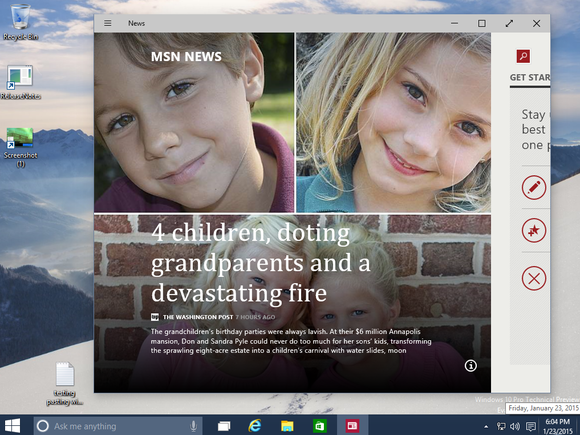
As you might have caught on by now, those reviled Metro apps from Windows 8 haven’t been eradicated—but they have been molded to fit desktop sensibilities. In Windows 10, launching a Metro app on your PC opens it in a desktop window, rather than dumping you into a full-screen app. The windowed apps have a mouse-friendly toolbar of options across the top, and even alter their interface to best fit the size of the window. Nifty.
It’s not all roses—you can’t cut-and-paste text from a Metro app to a normal app, for instance, and Metro apps still tend to sport a sea of wasted space. But it’s a vast improvement over Windows 8.
_______________________________________________________________________________

Continuum

Picture 3: The Windows 10 Continuum

Yes, Windows 10 is vastly improved on PCs, but Microsoft didn’t forget about touchscreen users. As of Build 9926
, Windows 10 includes a handy “Continuum” feature that dynamically switches the interface between the PC-friendly desktop and a Windows 8-like mode that’s better suited for fingers, depending on how you’re using the device.
Windows tablets will default to the latter; PCs to the former. And hybrids will intelligently switch between the two modes depending on whether you have a keyboard attached. In tablet mode, the Start menu expands to fit the full screen, as do Metro apps. If you’d like to force a switch, the new Action Center has a dedicated “Tablet Mode” button that you can enable or disable at will.
_________________________________________________________________________________

Action Center notifications

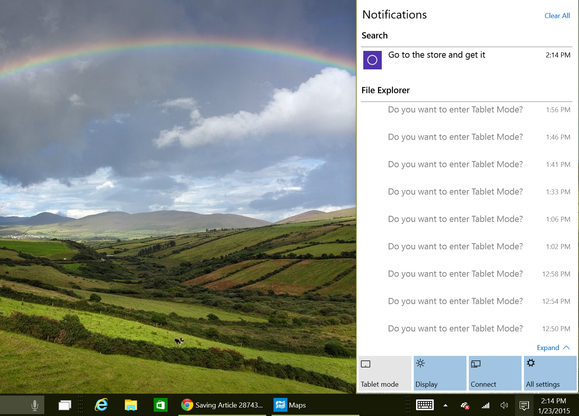
Picture 4: The Windows 10 Action center notifications

Notifications are one of the coolest features of modern operating systems, with popups reminding you of all sorts of useful information—and Windows 10 has them, too.

As Cortana becomes more tightly integrated into Windows 10, expect to see the Action Center become a repository of useful information (rather than the somewhat barren wasteland that it is right now). As notifications slide into view, they’re archived here.
______________________________________________________________________________

Cortana

Picture 5: The Windows 10 Cortana  

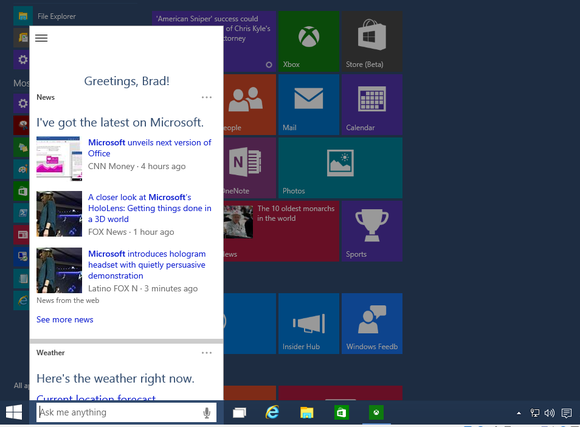
Cortana, Microsoft’s clever digital assistant on Windows Phone 8.1, makes the jump to PCs with Windows 10, where she assumes control of the operating system’s search functions. Cortana will want to access your personal info, then use that info along with her Bing-powered cloud smarts to intelligently surface information you’re looking and perform other helpful tasks.
Cortana can help you call a friend, schedule a reminder, set an alarm, check your calendar, compare stocks, and more, all via natural language queries you ask using text or voice commands. Cortana can also apply those natural language smarts to use search your hard drive, OneDrive, and business network for files that meet certain filters, like “Find me pictures from May.”
It’s deeply cool… though the initial Cortana build can be a bit flaky.
_______________________________________________________________________________

Xbox App

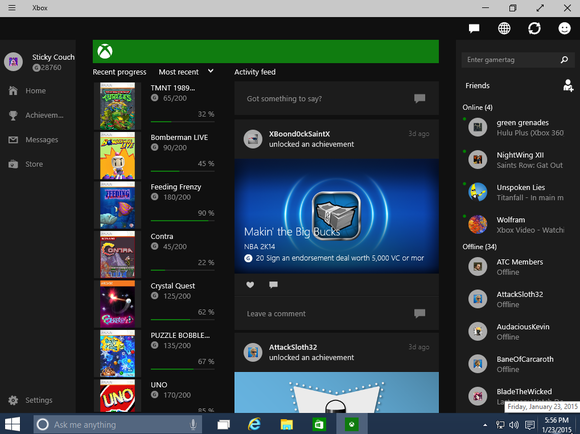
Picture 6: The Windows 10 Xbox App

The new app should feel deeply familiar to Xbox One fans: The center point is your Activity Feed, which is populated by your Xbox Live Friends’ activities, such as unlocking an achievement or launching a Twitch stream. The right side of the app lists your friends; selecting one offers options to view their game clips, invite them to a party, send an IM, and more. You can also view your own achievements, manage your profile, and more all right within the app. Eventually, you’ll be able to stream your Xbox One games to a Windows 10 PC or tablet.
We can’t help but shake the feeling that this app is more beneficial to console gamers who happen to have a PC than to true PC gamers. But it’s a very handy tool indeed if you fall into the former camp.
________________________________________________________________________________

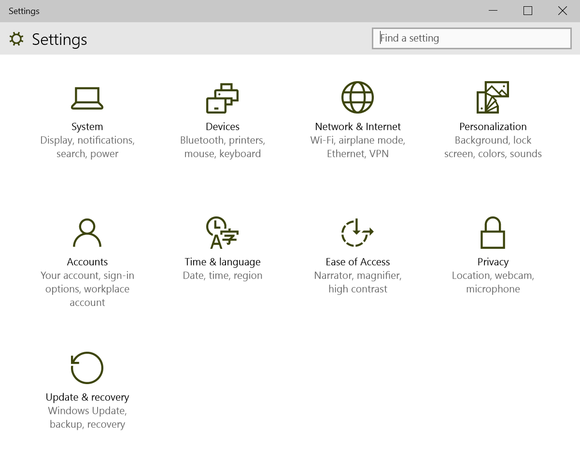
Settings are solidified, while Charms vanish

Picture 7: The Windows 10 settings 

One of the odder design decisions within Windows 8 was the separation of Settings into two buckets, one each for the Desktop and Modern/Metro interfaces. 
With Windows 10, that goes away. Now, there is one Settings menu, available from the Start button. As a bonus, the somewhat annoying Charms menu has vanished.
Hurray!
________________________________________________________________________________

File Explorer's Home folder

Picture 8: The Windows 10 File Explorer

Sure, the flattened icons freshen up the place. But we like how Windows intelligently presents recent files and folders, as well as the most frequently accessed locations within your PC. Once you get used to it all, you’ll quickly find that it saves you time.
________________________________________________________________________________

Boot to desktop

Picture 9: The Windows 10 desktop

In Windows 10, this isn’t even a setting any more. Windows 10 simply launches you into the familiar Desktop experience, which any Windows user knows how to navigate. Bye, Start Page. Goodbye forever.
________________________________________________________________________________

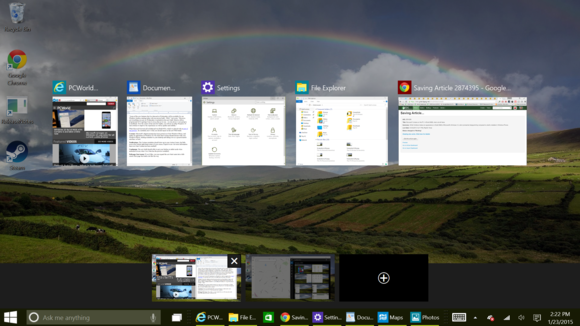
Virtual Desktops

Picture 10: The Windows 10 Virtual Desktops

The poor man’s multimonitor setup allows you to go back and forth between either apps or “desktops” of apps, organized how you like them.
(You can either ALT-TAB through the apps themselves or else hit Windows + CTRL+ either the left or arrow to move between virtual desktops, and right-click and app to move it between virtual desktops, too.)
Either way, virtual desktops mean that you instantly know where things are.
________________________________________________________________________________
This is the end of this post, but not of our blog!

Did you like it? We appreciate your opinions, so please comment and share your thoughts with us!